
HDO Box for Smart TV: Install & Watch in 2026
Want HDO Box on your Smart TV? The short answer: yes, it’s possible — but how depends entirely on which TV you own. Some smart TVs run HDO Box directly; others need a small helper device. This 2026 guide sorts every major brand into what works, what doesn’t, and the exact setup for each.
Quick context: the original HDO Box app is dead in 2026. This guide uses HDO Box Plus, the community fork that works today — get it from our HDO Box download page.
Which smart TVs can run HDO Box?
| TV platform | Native HDO Box app? | What works |
|---|---|---|
| Android TV / Google TV (Sony, TCL, Hisense, Philips, Chromecast with Google TV) | ✅ Yes — install the APK directly | Download the APK and sideload it — takes 10 minutes |
| Amazon Fire TV / Firestick (built into some TVs) | ✅ Yes — install via Downloader | The most popular route; see the Firestick guide |
| LG (webOS) | ❌ No native app, no sideloading | Use a Firestick/Android box via HDMI, or cast from your phone |
| Samsung (Tizen) | ❌ No native app, no sideloading | Same as LG: Firestick/Android box via HDMI, or cast |
| Roku TVs | ❌ No native app | Firestick or Android box via HDMI |
If your TV runs Android TV or Google TV, you’re in the easy group. Everyone else needs a helper device — which honestly gives you a better experience anyway (see below).
Method 1: Android TV / Google TV (native install)
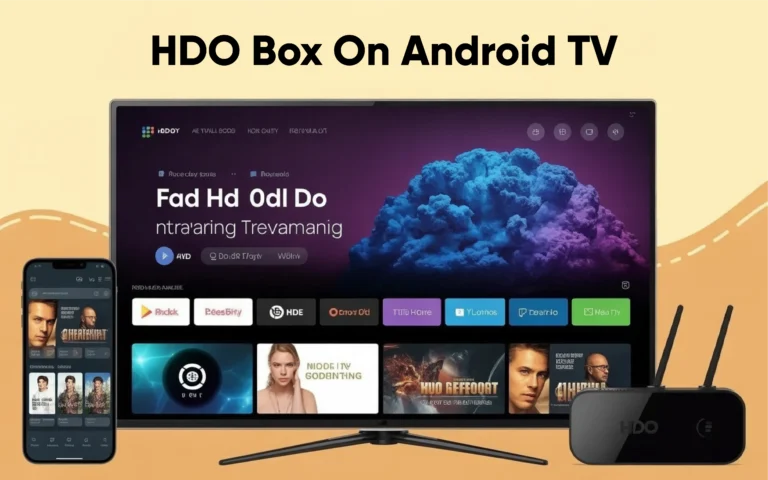
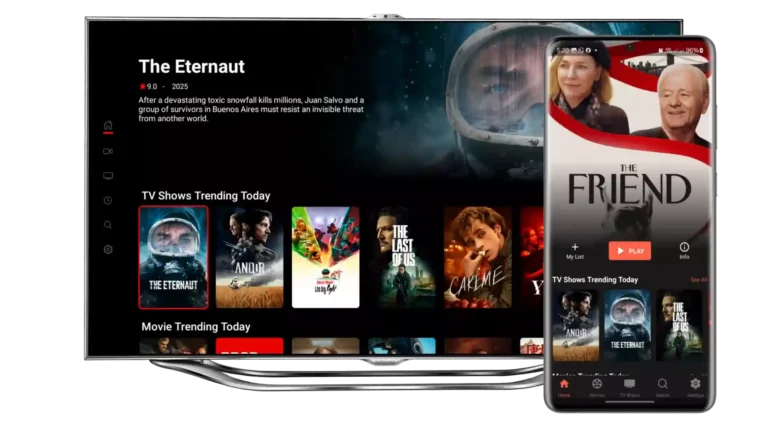
This is the cleanest route — HDO Box Plus runs as a normal app on your TV:
- Download the HDO Box Plus APK from our download page.
- On the TV, allow unknown sources for your file manager/browser (Settings → Apps → Special app access).
- Open the APK file and install it.
- Launch HDO Box Plus and sign in/set up as usual.
Full walkthrough with screenshots and the Google TV unknown-sources path: HDO Box on Google TV and HDO Box on Android TV.
Method 2: Fire TV / Firestick (works on ANY TV)
A Firestick plugs into any TV’s HDMI port and turns it into an HDO Box machine — regardless of the TV’s own operating system:
- Plug the Firestick into your TV’s HDMI port and connect to Wi-Fi.
- Install the Downloader app from the Amazon Appstore.
- Use Downloader to fetch the HDO Box Plus APK from our download page.
- Install and open — the TV remote works for browsing.
Step-by-step: HDO Box on Firestick.
Method 3: LG Smart TVs (webOS) — via HDMI or casting
LG TVs cannot install HDO Box — webOS has no APK sideloading. The two working routes:
- Firestick or Android TV box via HDMI — plug it in, install HDO Box Plus on the stick/box (Method 2), and use it exactly like a built-in app.
- Cast from your phone — run HDO Box Plus on your phone and cast to the LG TV.
Full details: HDO Box on LG Smart TV.
Method 4: Samsung Smart TVs (Tizen) — via HDMI or casting
Same situation as LG: Samsung’s Tizen OS doesn’t support APK installs. Use a Firestick or Android TV box plugged into HDMI, or cast from your phone.
Which method is best?
- Best picture & control: Android TV/Google TV native install — the app runs on the TV itself, remote works natively.
- Easiest for any TV: Firestick — one cheap device, works on every TV with an HDMI port, and doubles as a full Fire TV.
- Already have a phone/tablet install? Casting costs nothing and works fine for casual watching.
Tips for the best Smart TV experience
- Use a good external player. The Drama Player guide shows how to pair HDO Box Plus with an external player for smoother 4K playback.
- Subtitles on a big screen: if captions are missing or out of sync, the subtitles fix guide covers every solution.
- Keep the app updated. Outdated builds lose working sources fast — update HDO Box Plus whenever playback starts failing.
- Ethernet beats Wi-Fi for 4K streams if your TV has a port — fewer buffering pauses.
- A VPN helps in some regions and on ISPs that throttle streaming; see Is HDO Box Safe? for the honest breakdown.
The bottom line
“Can I watch HDO Box on my Smart TV?” is always a yes — the only question is the route. Android TV and Google TV owners install it directly; LG, Samsung, and Roku owners add a Firestick or Android box to an HDMI port. Either way, you end up with the same working HDO Box Plus library on the big screen.